
How to Create a New Folder on UpToEarn – Step-by-Step Guide
Don’t worry if your UpToEarn account begins to look like a messy digital attic with papers all over the place, no way to find that one file, and an ever-present fear of who could see it. Creating folders is the simplest fix. A few documents that you upload very quickly become hard to manage without some sort of organizational system. You’ll lose out on the effectiveness of the platform and end up wasting time while putting yourself at risk of accidentally leaking sensitive information. In this guide, we'll walk you through how to create a new folder in UpToEarn, from choosing whether it should be public or private to clicking the right button, as well as expert tips for keeping your cloud storage tidy and secure.
Filers are the basis of intelligent file management; filers are much more than mere digital boxes. If you want to store project files, share information, or even simply back up personal data, having properly filed files on UpToEarn can make all the difference. Let's sort out your files.
Table of Contents
- What Are Folders on UpToEarn?
- Why Create Folders in UpToEarn?
- How to Create a New Folder on UpToEarn (Step‑by‑Step)
- Best Practices for Managing Folders
- Common Mistakes to Avoid
- Public vs Private Folder Differences
- Troubleshooting Folder Creation Issues
- Frequently Asked Questions (FAQ)
What Are Folders on UpToEarn?
The folders available on UpToEarn work just like the folders on your computer. In your My Files control panel, you can place files in these virtual folders to keep them organized and sorted. Each folder also comes with a feature that will either make it private or public. The number of folders you need depends on you, but you can create as many as you want and even layer them to form an orderly system.
Why Create Folders in UpToEarn?
Organisation Benefits
Rather than having to flip through countless pages of unorganized uploads, you will be able to get to what you are looking for in just seconds if you organize your files into the right folders on UpToEarn. Future you will thank you for creating different folders for categories like “Client Work,” “Templates,” and “2026 Marketing Materials.”
Privacy Benefits
Control over who gets to see your information is highly customizable using folders. Even with full knowledge about how to access information, having it stored in a private folder ensures that private documents remain completely out of sight. This comes especially handy for internal documents and personal back-ups.
Better File Management
Downloading all files from a folder, copying the URL of a folder to share all of its contents, or performing any other action on a mass basis could be accomplished more effectively through folders. This is the fastest way of dealing with uploaded files without missing anything.
How to Create a New Folder on UpToEarn
Follow these exact steps to create your first (or next) folder in under a minute.
Step 1: Log in to Your UpToEarn Account
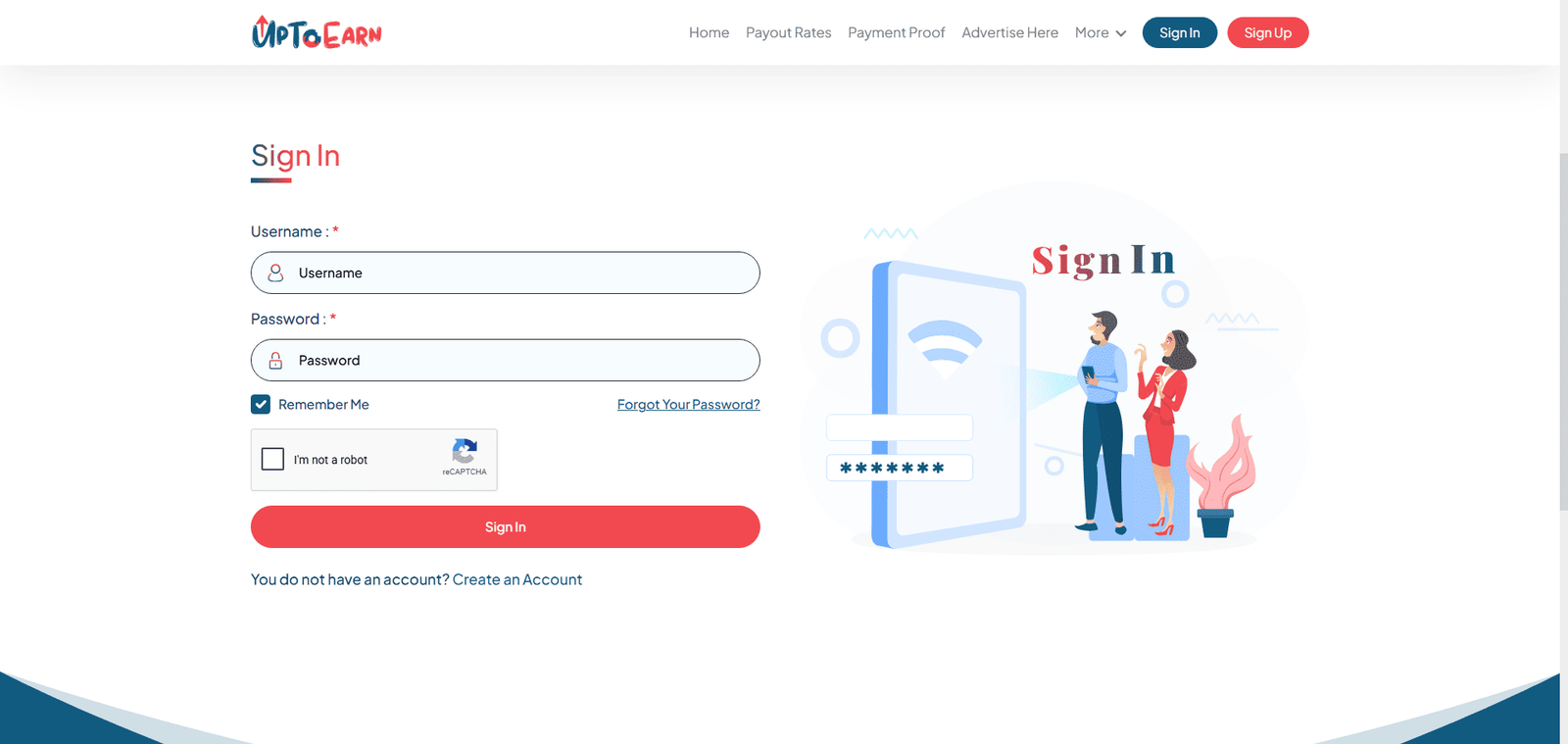
Go to uptoearn.org and enter your email and password. If you have two‑factor authentication enabled, approve the login prompt.
Pro Tip: For the best security, use a strong, unique password and activate 2FA – it’s an extra layer that protects all your files.
Step 2: Navigate to “My Files”
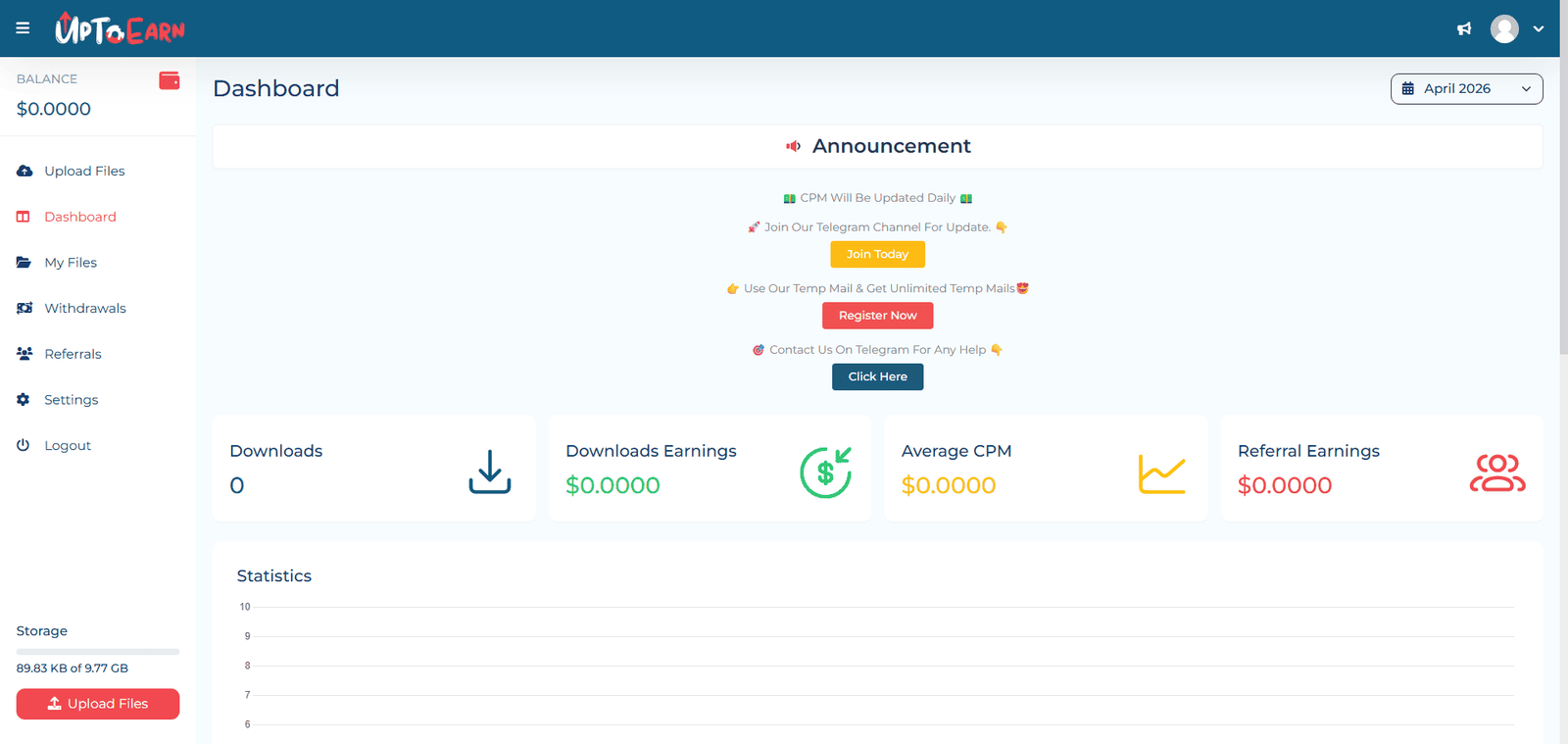
Once you’re on the main dashboard, locate the My Files option in the top navigation bar or the left‑hand sidebar. Click it to open your personal file management area.
Pro Tip: You can also access My Files directly by bookmarking the URL after login – a handy shortcut if you manage files daily.
Step 3: View Your Existing Folders and Uploaded Files
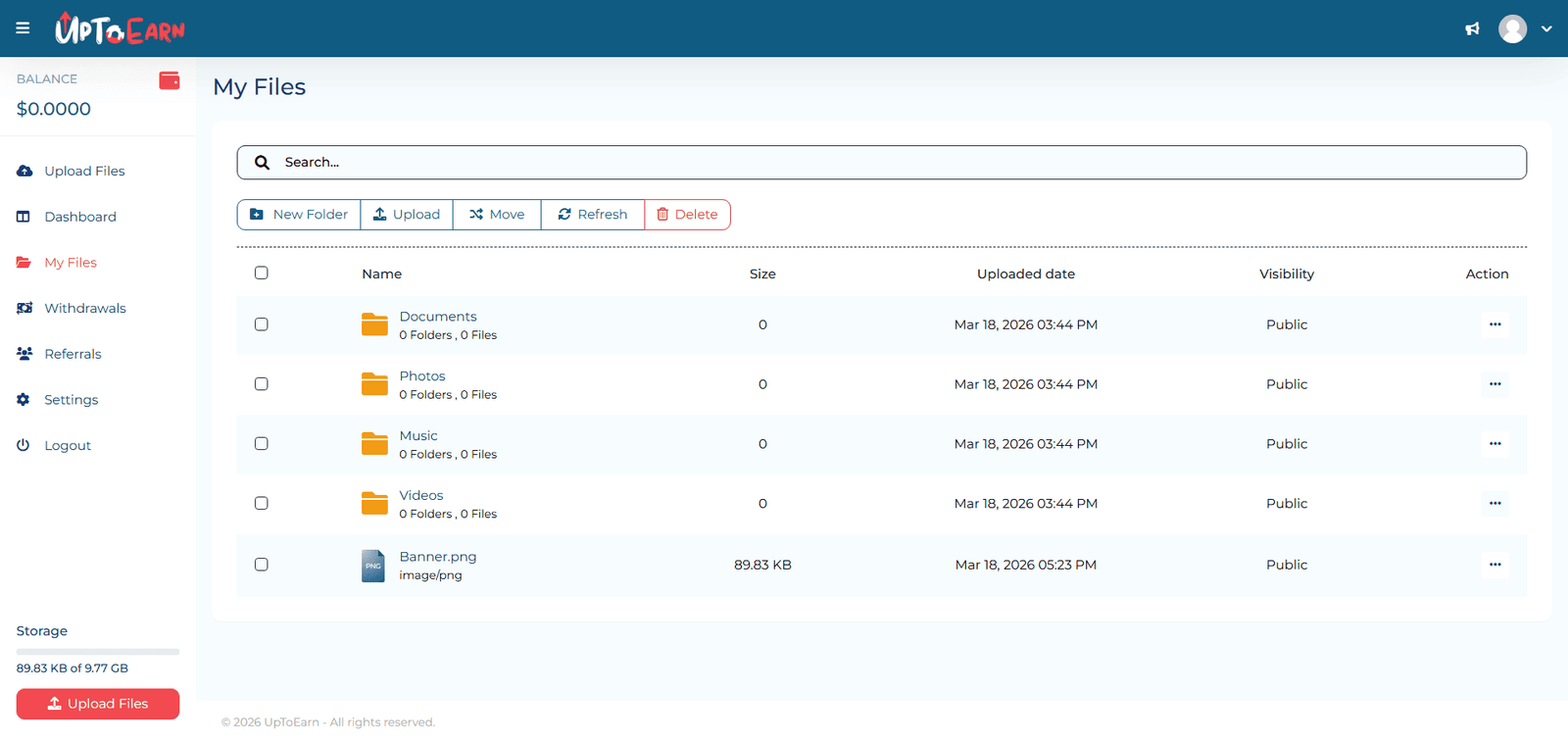
Inside My Files, you’ll see a grid or list of everything you’ve already uploaded. If you haven’t created a folder yet, you might only see loose files. At the top (or in an action toolbar) you’ll spot the tools you need.
Pro Tip: Use the search bar above the file list to quickly locate a specific file before reorganising – it saves time when you want to move existing files into a new folder later.
Step 4: Click the “New Folder” Button
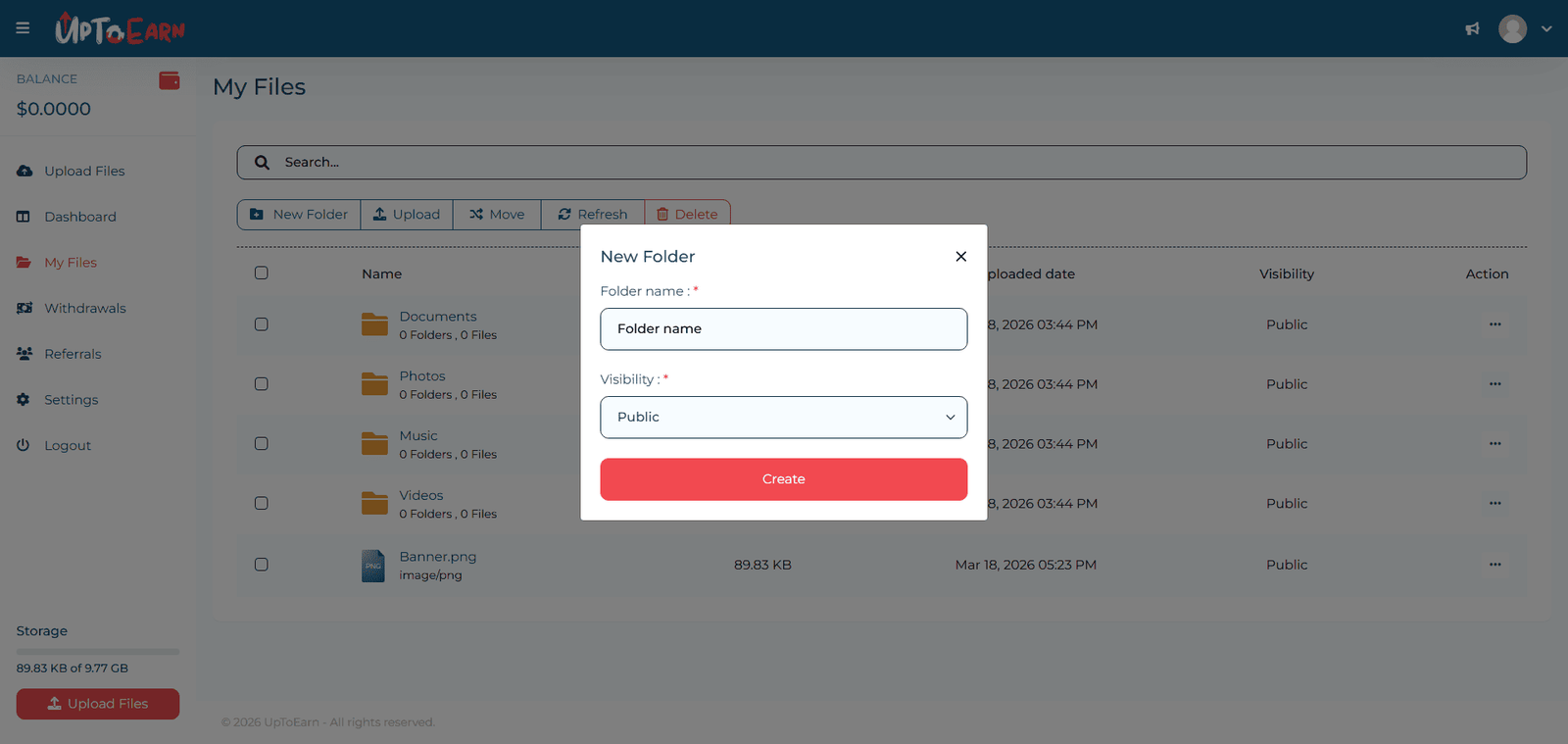
Look for a button labelled New Folder – it’s usually clearly visible in the menu bar above your file list, sometimes represented by a folder icon with a plus sign. Click it to open the folder creation popup.
Pro Tip: If you don’t see the button immediately, make sure you’re in the root of My Files and not inside an existing folder, as some interfaces hide global actions while browsing a subfolder.
Step 5: Enter a Folder Name
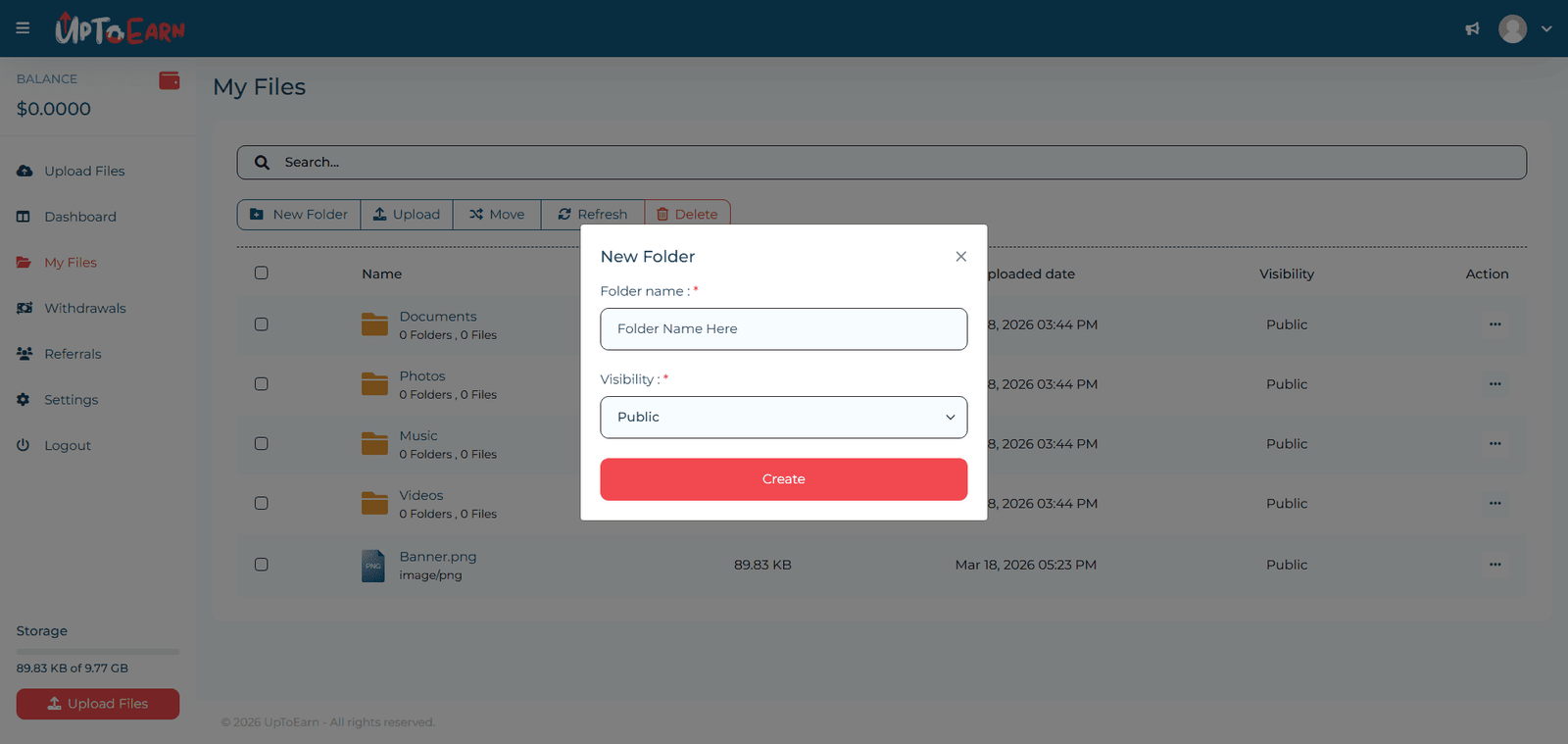
A popup window will appear with a text field. Type in a clear, descriptive name – something that instantly tells you (or your collaborators) what’s inside.
Pro Tip: Avoid names like “Stuff” or “Misc.” Instead use “Client-Contracts-2026” or “Logo-Assets”. This one small habit makes file organisation dramatically easier down the line. Also, stick to letters, numbers, hyphens, and underscores – special characters are best avoided.
Step 6: Choose Visibility – Public or Private
Right below the name field, you’ll see two visibility options: Public and Private.
- Public: Anyone with the folder link can view and download the files inside. Ideal for sharing content you want others to access easily.
- Private: Only you can see the folder and its contents, even if someone gets hold of the link. Use this for confidential or personal storage.
Pro Tip: When in doubt, start with Private – you can always switch to Public later if you need to share. This prevents accidental exposure of sensitive files.
Step 7: Click “Create” – Folder Successfully Created
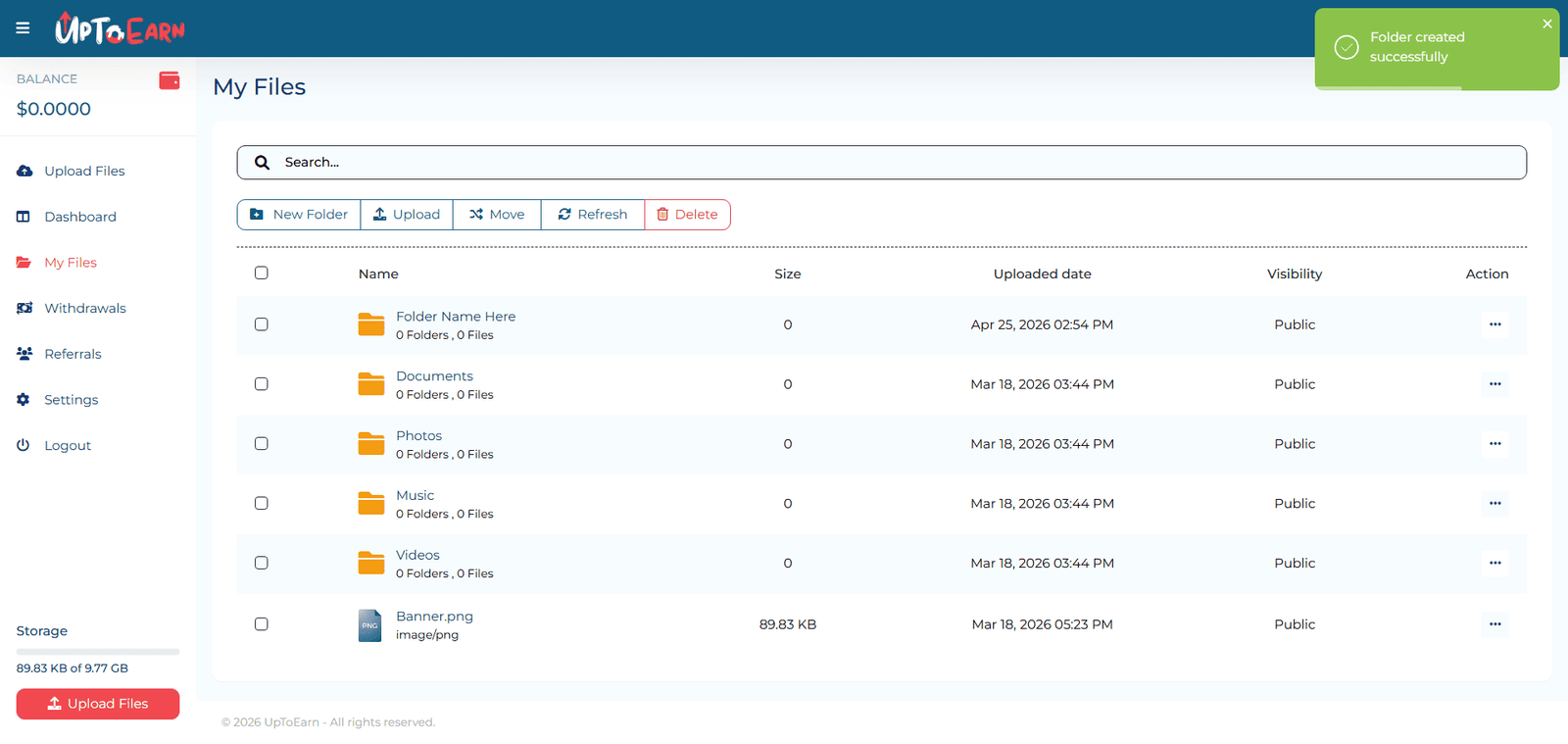
After naming your folder and picking the visibility, hit the Create button. The popup will close, and your brand‑new folder will instantly appear in My Files.
Pro Tip: You can immediately start uploading files into the folder by clicking on it and using the upload button inside. That way your new folder starts working for you right away.
Best Practices for Managing Folders
- Use One Consistent Naming Method: Name your folders using methods like “ProjectName_Year” or “Category-Date.”
- Organize Files According to Their Functionality: Group similar files into one folder. It is highly suitable for organizing your folders.
- Have Fewer Levels in Your File Hierarchy: To avoid being overwhelmed, having two or three levels of folders is usually sufficient. Do not create nine-level folders.
- Evaluate Your Folders Regularly: Periodically archive old folders and delete unnecessary empty folders. Tidying UpToEarn is an UpToEarn process.
- Utilize Private Folders for Your Confidential Folders: Never use private folders for confidential data and always switch them to public once you are ready.
Common Mistakes to Avoid
- Visibility Set To Public As Default: You may unintentionally set your personal documents to public if the folder where you want to keep them accidentally gets set to public. Remember to double-check your radio button before creating your new folder.
- Vague File Naming: New Folder (3) is not descriptive enough. Rename the file right away after creation.
Creating Too Many Folders: Plan your structure first. Having too many empty folders can also be as messy as having no folders at all. - Not Realizing Subfolders Will Get Inherited Visibility Properties: The subfolder will stay private as long as it stays inside a private folder. But visibility properties can change depending on the location you move it to.
- Failing to Consider Cache Problems: Cache clears should help resolve any problems with the New Folder button.
Public vs Private Folder Differences
These two visibility modes govern who can access your content. Here’s a breakdown:
| Feature | Public Folder | Private Folder |
|---|---|---|
| Who can view? | Anyone with the link | Only you (the account owner) |
| Appear in searches? | May be indexed or discoverable if shared | Not listed anywhere publicly |
| Best for | Sharing with community, distributing content | Personal backups, confidential files |
| Link sharing | Simple – share the link, no login required | Link leads to “private/not accessible” for others |
| Can change later? | Yes, you can switch between Public and Private anytime | Yes, same flexibility |
Pro Tip: If you need to share a collection of files temporarily, set the folder to Public while the link is active, then switch it back to Private afterward. That’s smart hygiene.
Troubleshooting Folder Creation Issues
However, even an efficient tool such as UpToEarn sometimes makes you run into problems. Here is what you should consider doing:
- Folder name already exists – UpToEarn allows only unique folder names at the same location. Modify your desired name slightly (e.g., "Reports-2026-v2").
- No New Folder button – Clear the cache of your browser or use another browser for some time. Moreover, make sure that you did not enter the preview mode of any files; return to the main "My Files" page.
- Visibility option unavailable – It is possible that there are specific account requirements or restrictions imposed by the platform on the Public creation feature. Ask your account manager for details.
- The folder does not show up after creation – Try to reload the web-page. Sometimes a slow internet connection prevents UpToEarn from displaying it. If you see no results, turn to the UpToEarn support.
- Date/Time Stamp Looks Off – Don’t worry; folders use server time and will display correctly after the first file is added.
Log in to your UpToEarn account and create your first folder in under a minute. And if this tutorial helped you, share it with a friend who could use a cleaner file system. For more power‑user tips, keep browsing the UpToEarn Guides section.
Article Links:
Other Resource: PayPal Withdrawal Guide
Frequently Asked Questions (FAQ)
How do I create a folder in UpToEarn?
Log in, go to My Files, click the “New Folder” button, enter a name, choose visibility, and click Create. It’s that simple.
Can I make a private folder in UpToEarn?
Absolutely. During folder creation, select “Private” under visibility. The folder and all its contents will be visible only to you.
What is the difference between public and private folders?
Public folders can be accessed by anyone with the link, while private folders are locked to your account and cannot be viewed by others, even with a direct URL.
How many folders can I create on UpToEarn?
There is no hard limit. You can create as many folders as you need, including sub‑folders, as long as you stay within the terms of service.
Can I change folder visibility after creating it?
Yes. You can edit a folder’s settings at any time to switch between Public and Private. Just look for the edit or information icon next to the folder.
Can I move files between folders on UpToEarn?
Yes, the platform typically allows you to move or copy files between folders. Look for the move/copy option in the file’s action menu.
Can I rename a folder?
Yes, you can usually rename a folder by selecting the edit option alongside it. Keep the name unique within its parent location.
Where is the New Folder button located?
It’s prominently displayed in the My Files toolbar or action bar, often accompanied by a folder icon and a “+” symbol. If you’re on a small screen, it may be inside a dropdown menu labelled “Actions”.


Comments (0)
No comments found