
How to Make Files Private on UptoEarn: The Ultimate Guide for Secure File Storage
In today’s digital world, data privacy and security are more important than ever. Whether you are sharing personal documents, business files, or creative content, unauthorized access can compromise sensitive information. UptoEarn, a leading file hosting platform, provides robust tools to control who can view or download your files. In this comprehensive guide, we will explain how to make files private on UptoEarn, along with expert tips to enhance your online security.
Why File Privacy Matters on UptoEarn
Protecting your files ensures:
Confidentiality: Only selected users can access your data.
Security: Prevents data breaches and unauthorized downloads.
Compliance: Helps meet privacy standards and regulations.
By leveraging UptoEarn’s privacy settings, you can maintain full control over your files, whether for personal or professional use.
Pro Tip: Always use a strong, unique password and enable two-factor authentication for extra security.
Understanding UptoEarn's Privacy Features
Strong privacy controls are provided by UptoEarn, letting users decide who may view the content they submit. You may use these options to mark files as private, limiting access to just those who are permitted or certain groups.
How to Make Your Files Private In UpToEarn
1. Open your UptoEarn account and log in.
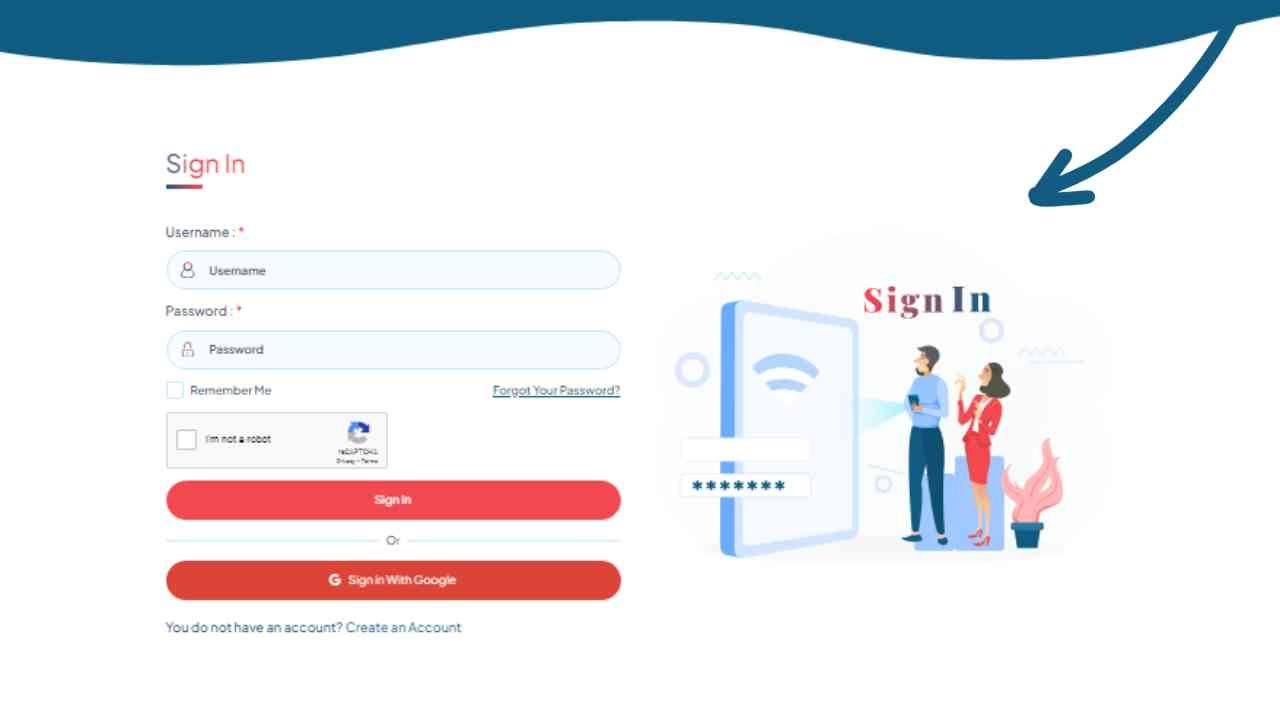
Go to UptoEarn login and enter your credentials. If you’re new, create a free account in minutes.
2. Upload Your File
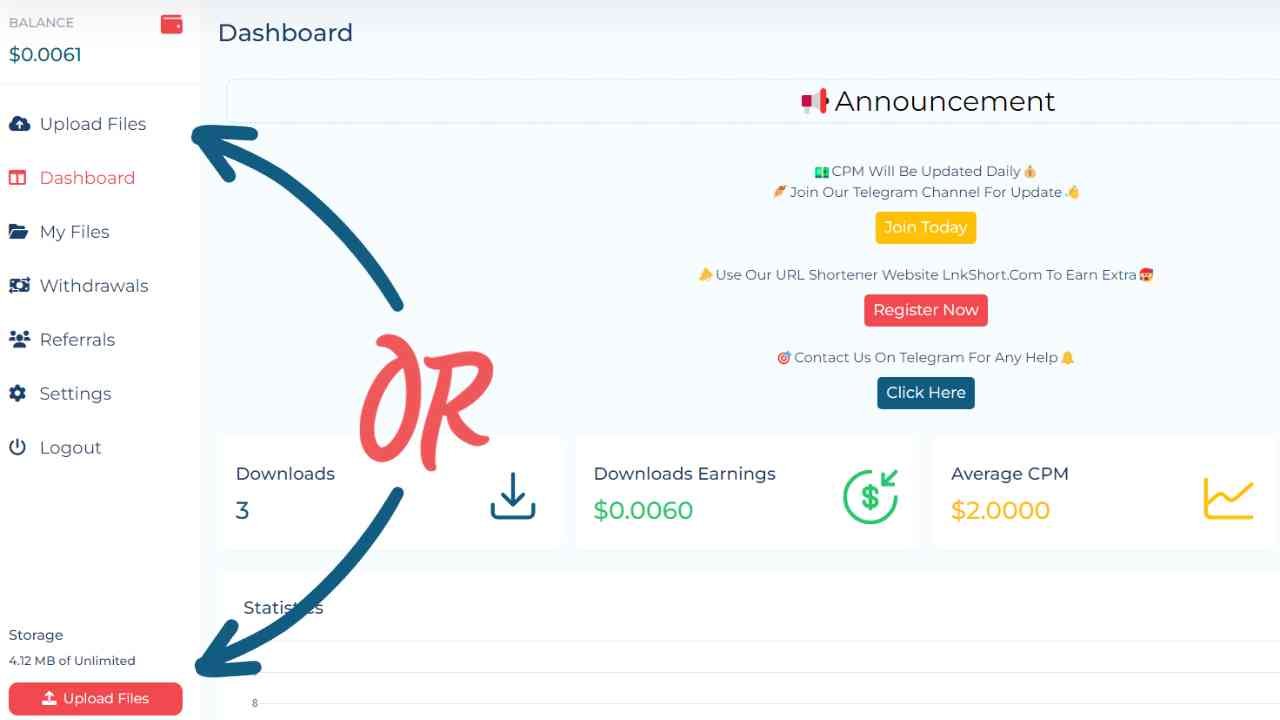
Upload the file you want to make private after logging in. Make sure the file you submit is in a format that UptoEarn accepts.
3. Access Privacy Settings
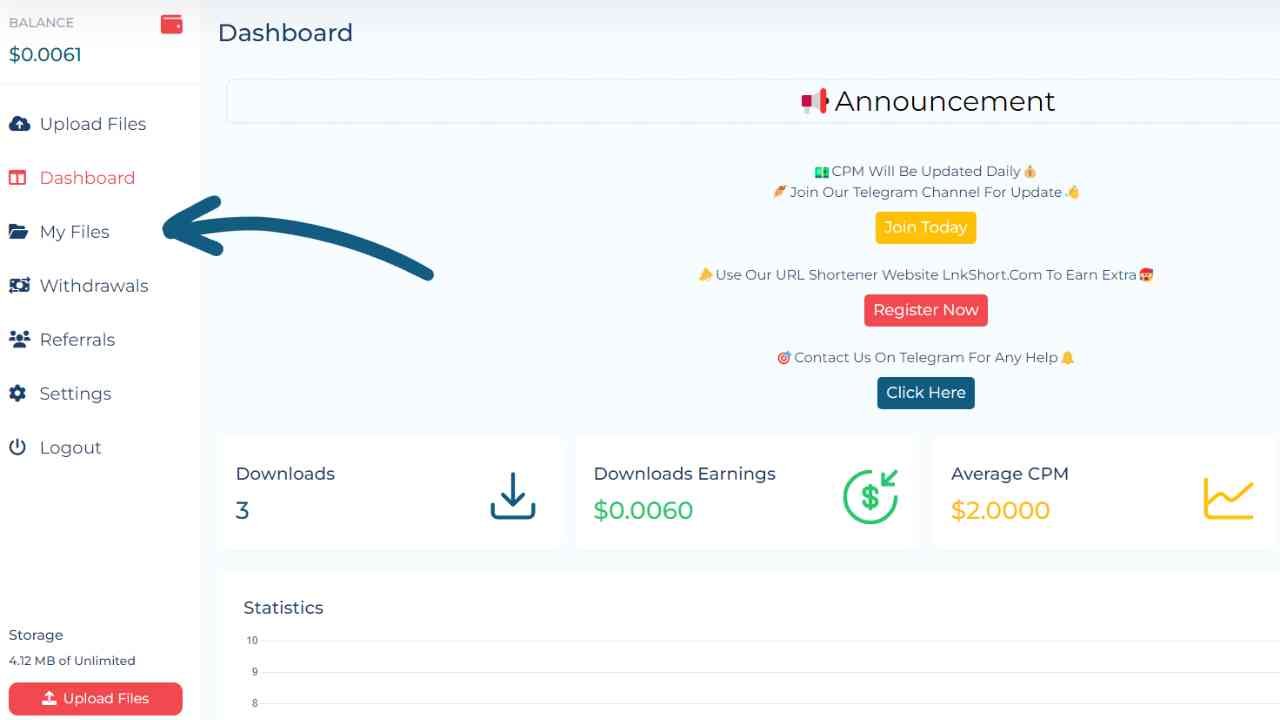
Go to the file details page or the file management area after the file has been uploaded. All of the files and folders you have uploaded are located here.
4. Set File Privacy to Private
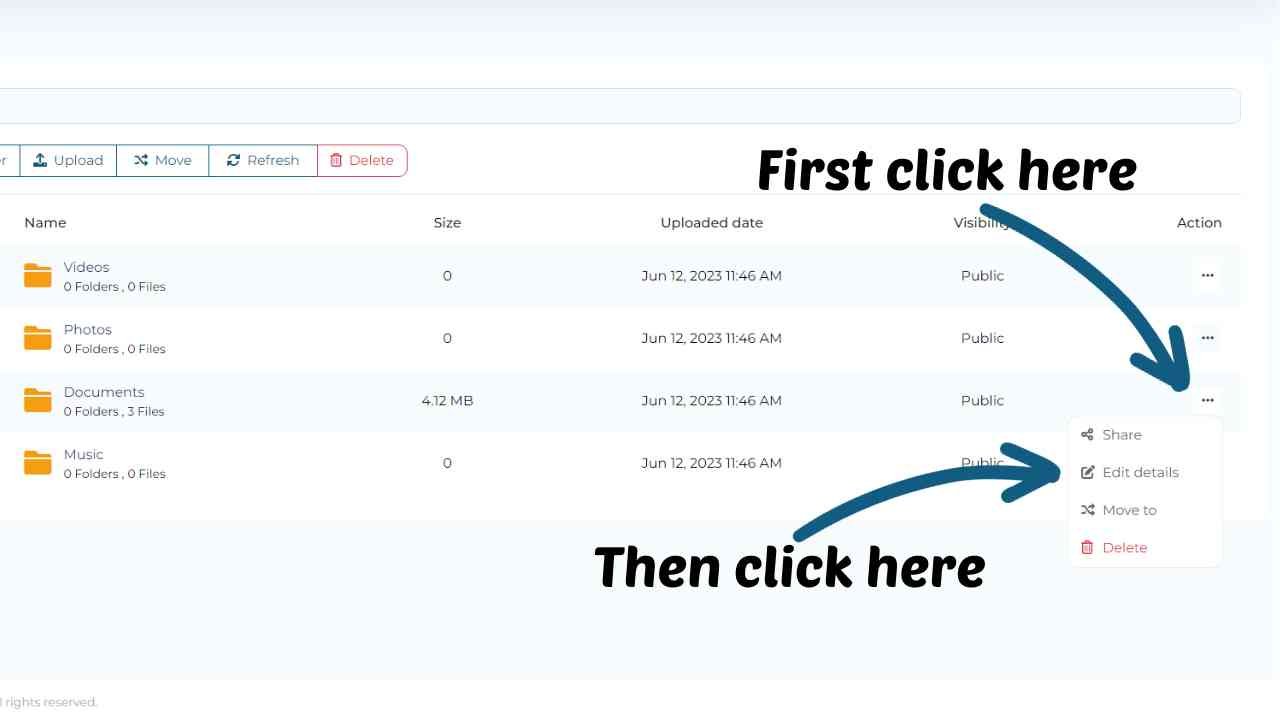
You may now make your folder private if you'd like. To make the Documents folder private, for instance, click the three dots and select Edit Details.
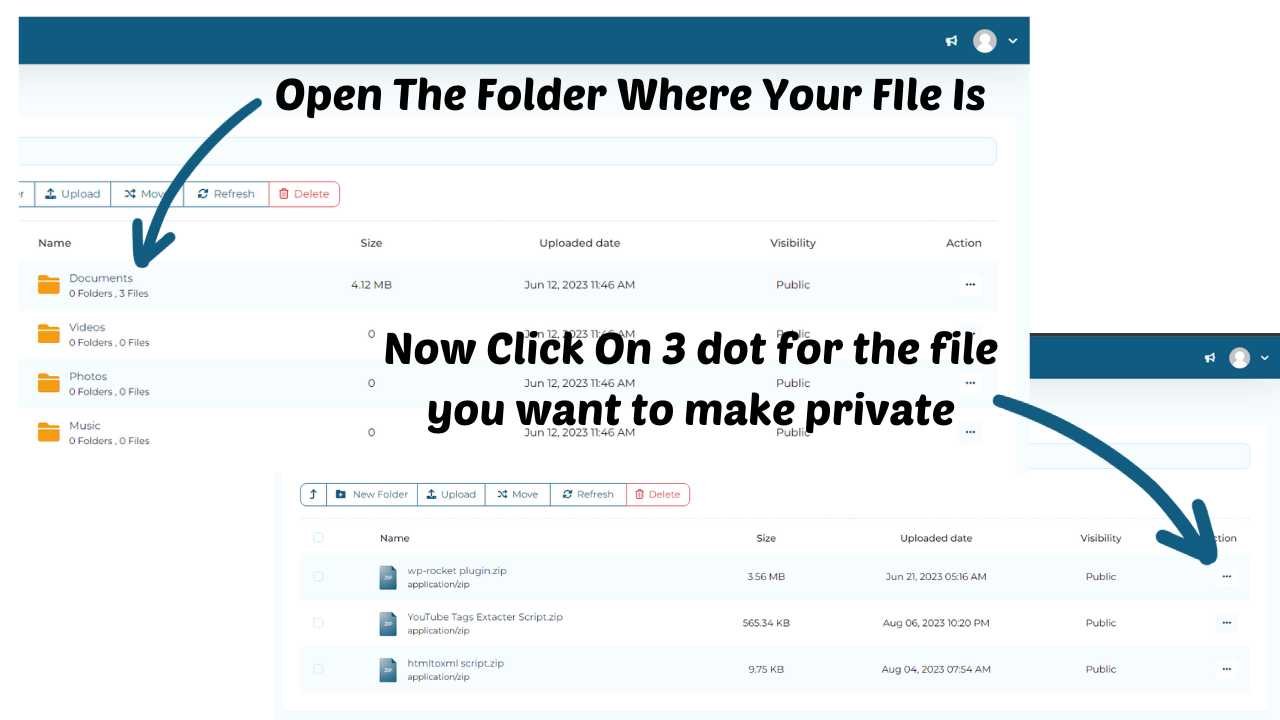
Same goes for the file you want to make private. Select the folder where your file is located then click on 3 dot for the file you want to make private.
5. Customize Access Permissions
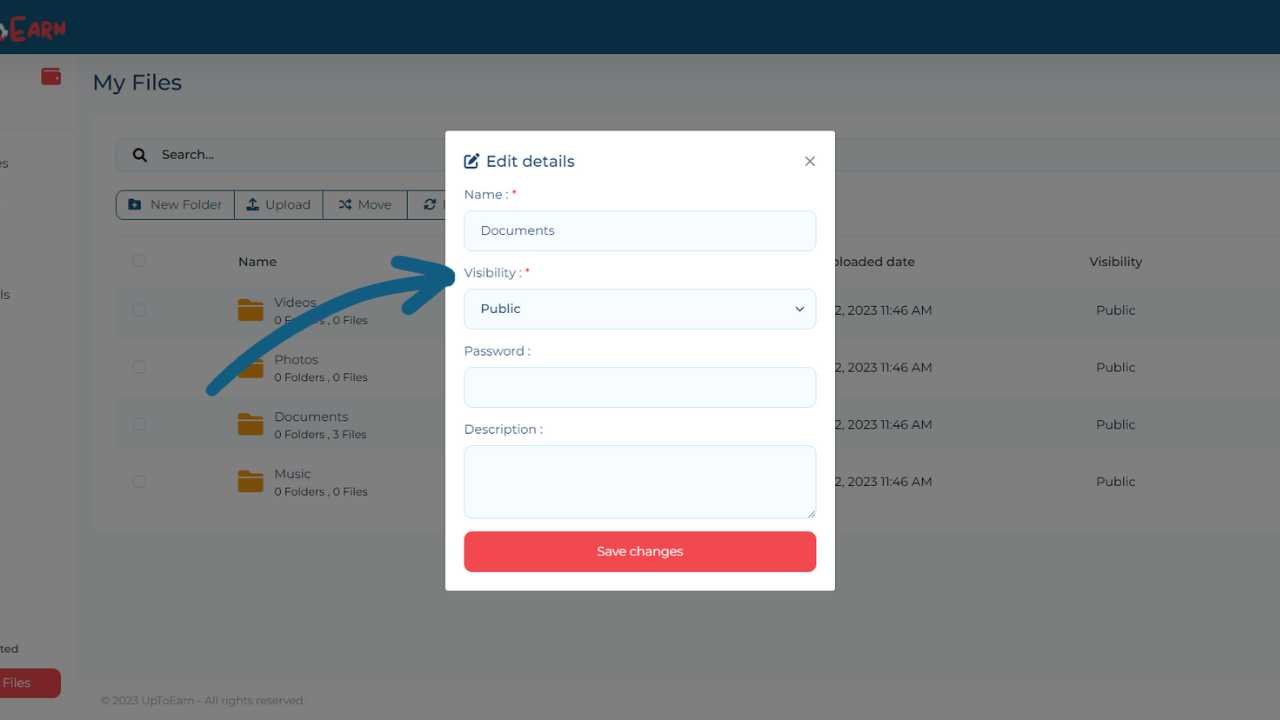
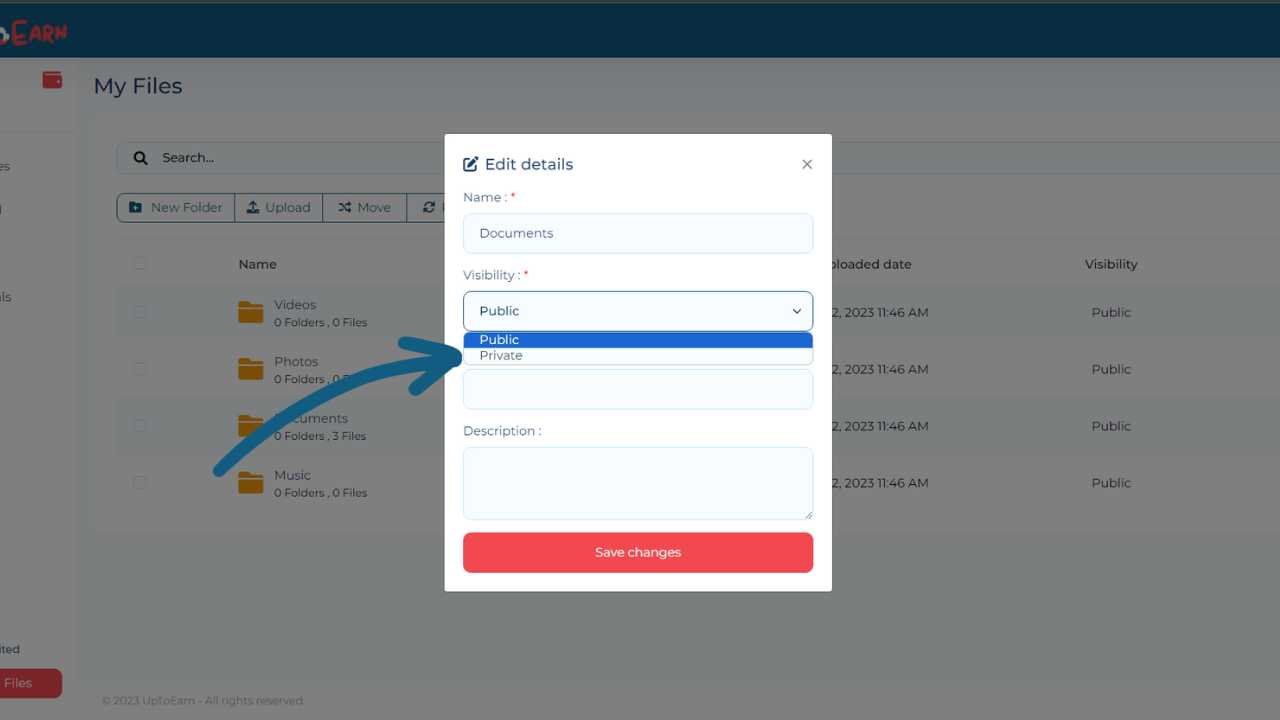
Here, you can edit the file visibility. Now to make file private click on visibility drop menu then select private as shown on the screenshot.
6. Save and Apply Changes
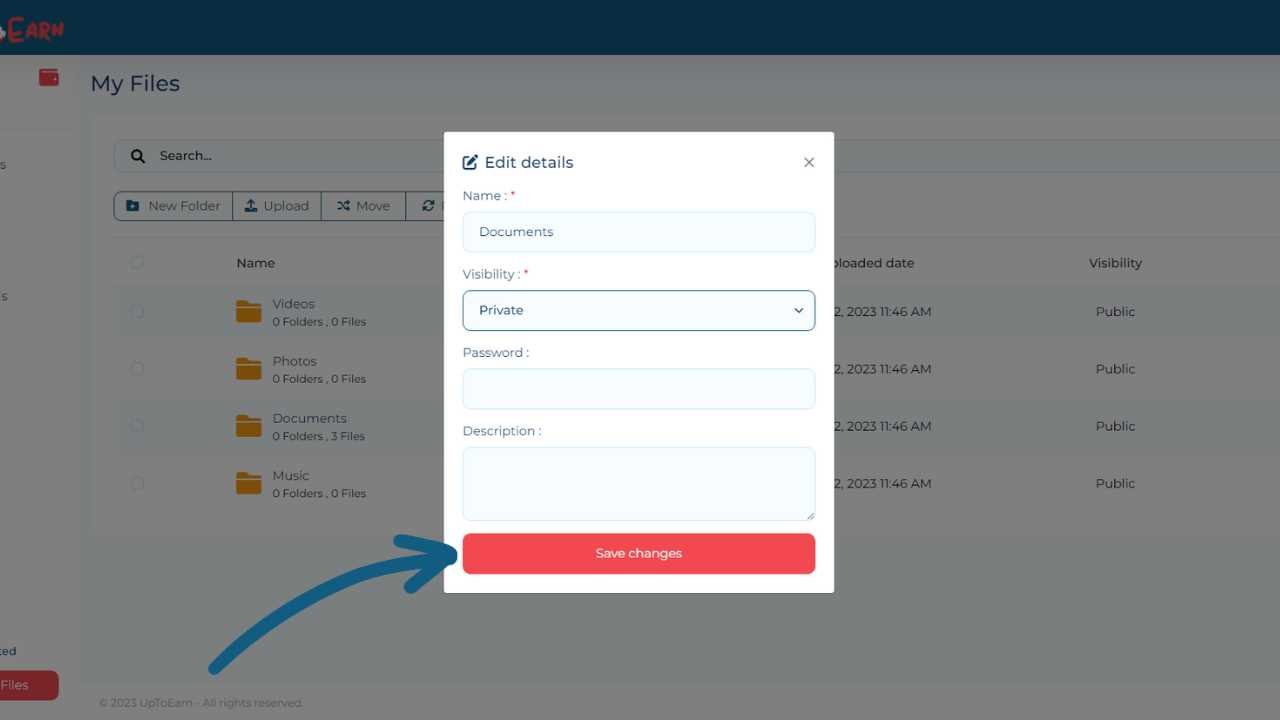
After adjusting the privacy settings according to your preferences, remember to save the changes. Double-check the settings to ensure they reflect your desired privacy level.
Best Practices for File Privacy on UptoEarn
- Check and adjust your file's privacy settings on a regular basis, particularly if your access requirements change.
- To avoid unwanted access to your UptoEarn account, create strong, one-of-a-kind passwords.
- To provide an additional degree of protection, think about encrypting important data before uploading them.
Benefits of Making Files Private on UptoEarn
- Enhanced Security: Reduces risk of unauthorized access.
- Managed Access Control: Decide who can view, download, or edit files.
- Regulatory Compliance: Protect sensitive data to meet privacy requirements.
- Peace of Mind: Focus on work knowing your files are secure.
Read More Articles:
- How to Enable Two-Factor Authentication
- How to upload your files
Conclusion
Protecting your files on UptoEarn is straightforward but essential. By following these steps and applying best practices, you can ensure your data stays private, secure, and under your control. Start using UptoEarn’s privacy features today and enjoy safe file storage and sharing.


Comments (0)
No comments found